I spent four weeks building an agentic helpdesk on Amazon Connect. The documentation didn’t help.
What follows is everything I learned the hard way — the architectural decisions, the undocumented gotchas, the things that only surface when you’re staring at a CloudFormation stack rollback at 11 PM. If you’re building AI agents on Connect, this will save you weeks.
What I Built
An intelligent contact center framework. Not a chatbot. An agentic system where AI handles customer interactions through real tools, supervisors watch in real-time, and humans can steer the AI mid-conversation without the customer knowing.
The stack:
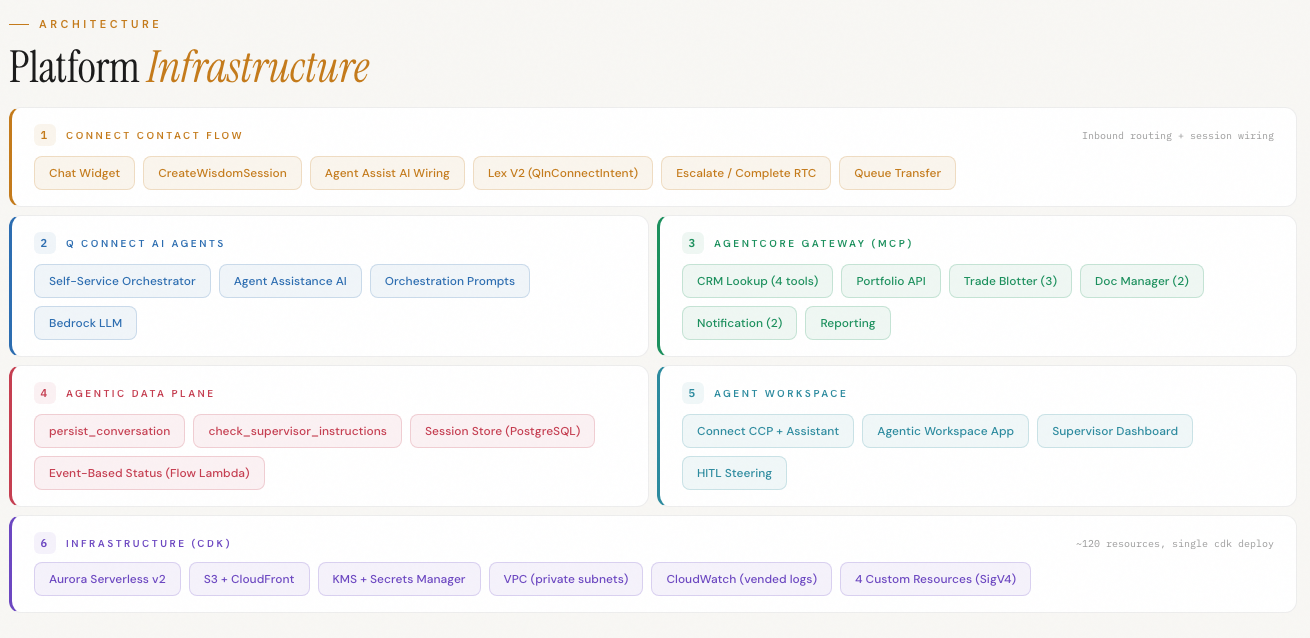
- Amazon Connect for telephony and chat routing
- Connect Orchestrator AI Agent for reasoning
- AgentCore Gateway with MCP protocol for tool access
- 18 Lambda-backed tools (CRM, portfolio, trade blotter, document management, notifications, compliance)
- Aurora Serverless v2 for conversation persistence
- A custom supervisor dashboard for human-in-the-loop steering
The result: A finserv demo with 105 deployed resources. One CDK command. Customer talks to AI, AI calls real tools, supervisor sees everything live, and can inject guidance the AI weaves in naturally. Full context preserved for escalation — not a one-line summary.
The architecture looks clean on a diagram. Getting there was not.
The Architecture
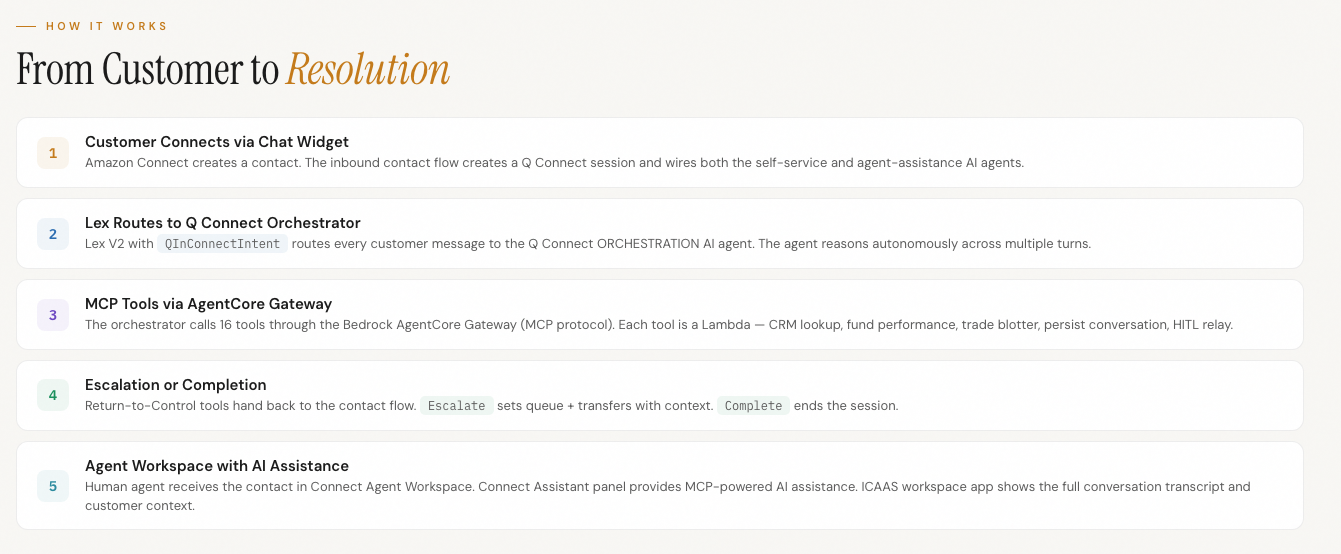
The flow:
Customer > Connect Widget > Contact Flow
  > EnableLogging
  > CreateWisdomSession(AssistantArn)
  > UpdateContactData($.Wisdom.SessionArn)
  > ConnectParticipantWithLexBot
      (QInConnectIntent + AI agent via LexSessionAttributes)
  > Check $.Lex.SessionAttributes.Tool
  > Route: Escalate / Complete / Disconnect
The Orchestrator AI Agent sits behind a Lex bot using the AMAZON.QInConnectIntent built-in intent. It reasons over the conversation, decides which tools to call, and executes them through an AgentCore Gateway using MCP protocol.
Each tool is a Lambda function behind a Gateway Target. The gateway handles auth (CUSTOM_JWT from Connect), routing, and protocol translation.
Simple enough on paper. Here’s where it gets interesting.
8 Things the Docs Won’t Tell You
1. The Gateway Has a Circular Reference Problem
AgentCore Gateway requires an AllowedAudience — and that audience must be the Gateway’s own ID. But the ID only exists after creation.
CloudFormation can’t handle this. The CDK can’t handle this. You need a Lambda custom resource that:
- Creates the Gateway with a placeholder audience value
- Extracts the Gateway ID from the response
- Updates the
AuthorizerConfigurationto setAllowedAudience = [actual_gateway_id]
All in one invocation. And if the AuthorizerType is wrong on creation, you can’t change it — delete and recreate.
# Create with placeholder
gateway = cloud_control.create_resource(
    TypeName='AWS::BedrockAgentCore::Gateway',
    DesiredState=json.dumps({
        'Name': gateway_name,
        'AuthorizerConfiguration': {
            'CustomJWTAuthorizer': {
                'AllowedAudience': ['placeholder'],
                'AllowedClients': [...],
                'DiscoveryUrl': connect_discovery_url
            }
        }
    })
)

# Get the ID, then update
gateway_id = extract_id(gateway)
cloud_control.update_resource(
    TypeName='AWS::BedrockAgentCore::Gateway',
    Identifier=gateway_id,
    PatchDocument=json.dumps([{
        'op': 'replace',
        'path': '/AuthorizerConfiguration',
        'value': {
            'CustomJWTAuthorizer': {
                'AllowedAudience': [gateway_id],  # self-reference
                ...
            }
        }
    }])
)
One more thing — UpdateResource patch validation fails if AllowedClients or AllowedScopes arrays are empty. Replace the entire AuthorizerConfiguration object, not individual fields.
2. MCP Tool IDs Follow an Undocumented Format
Connect’s orchestrator expects tool IDs in this exact format:
toolId:   gateway_{gatewayId}__{targetName}____{toolName}
toolName: {targetName_with_underscores}____{toolName}- Double underscore
__between gateway prefix and target name - Triple underscore
___between target name and tool name - Hyphens in target names stay as hyphens in
toolIdbut convert to underscores intoolName - Max 64 characters for tool name — keep your target names short or you’ll hit the limit
Example:
gateway_my-mcp-gateway-abc123__my-crm-tool___get_investor_profileGet one underscore wrong and the orchestrator silently ignores the tool. No error. No log. It just doesn’t call it.
3. The Lambda Event Format Is Not What You Expect
The AgentCore Gateway does not pass { action, parameters } to your Lambda. It passes:
- event = flat properties from your tool’s
inputSchema(e.g.,{ investorId: "LP-001" }) - context.clientContext.custom.bedrockAgentCoreToolName =
targetName___toolName
Your Lambda needs to extract the action from context:
const action = event.action
  || context?.clientContext?.custom?.bedrockAgentCoreToolName
      ?.split('___').pop();

const parameters = event.action
  ? (event.parameters || {})
  : event;
This pattern stays backwards compatible with direct Lambda invocations. I discovered this after hours of debugging why my tools returned empty responses — the event destructuring was wrong.
4. Contact Flow JSON Has Silent Rejections
If you’re building contact flows programmatically (and you should be, for IaC), watch for these:
| What You’d Expect | What Actually Happens |
|---|---|
ConnectParticipantWithLexBot accepts LexInitializationData | Rejected. Must use Text prompt. |
Empty Conditions: [] in Transitions is valid | Rejected. Omit the field entirely. |
CreateWisdomSession with empty params {} | Rejected. WisdomAssistantArn is required. |
NoMatchingCondition on Lex block means error | No. It’s the normal exit path (Return to Control). |
None of these throw a clear error. The flow just silently breaks. I found each one by binary-searching through a 200-line JSON flow definition, commenting out blocks until something worked.
5. MCP Server Registration Is Console-Only
You can automate everything in the stack with CDK — except one step.
connect.create_integration_association(IntegrationType='APPLICATION', IntegrationArn=gatewayArn) rejects bedrock-agentcore ARNs. The API simply doesn’t accept them.
You have to register MCP servers manually: Connect console > Third-party applications > Add > MCP server > select your gateway.
One manual click per deployment. File the feature request. I did.
6. The AI Agent API Doesn’t Exist in boto3
CloudFormation’s AWS::Wisdom::AIAgent supports SelfServiceAIAgentConfiguration — but not orchestrationAIAgentConfiguration. The CLI doesn’t either. boto3 validation rejects it.
The REST API at wisdom.{region}.amazonaws.com supports it. So you sign the request yourself:
from botocore.auth import SigV4Auth
from botocore.awsrequest import AWSRequest

body = json.dumps({
    'name': agent_name,
    'type': 'ORCHESTRATION',
    'configuration': {
        'orchestrationAIAgentConfiguration': {
            'orchestrationUseCase': 'Connect.SelfService',
            'instructionConfiguration': {
                'overrideConfiguration': {
                    'instructionOverride': prompt_arn
                }
            },
            'toolConfigurations': tool_configs
        }
    }
})

request = AWSRequest(method='POST', url=url, data=body,
                     headers={'Content-Type': 'application/json'})
SigV4Auth(credentials, 'wisdom', region).add_auth(request)

response = http.request('POST', url, body=body.encode(),
                        headers=dict(request.headers))
Service name for signing: wisdom, not qconnect. That cost me an afternoon.
7. Security Profiles Need SigV4 Too
Connect Security Profiles with MCP tool permissions require Applications[].Type='MCP'. Lambda’s bundled boto3 doesn’t support the Type field.
Same pattern — SigV4-signed HTTP to the Connect API directly. Your Lambda role needs both wisdom:* and connect:* permissions.
The permission format:
{
    'Namespace': gateway_id,  # no 'gateway_' prefix
    'Permissions': ['{targetName}___{toolName}'],
    'Type': 'MCP'
}
8. Deployment Order Is Critical — and Fragile
The dependency chain:
- VPC + Database + KMS
- Tool Lambdas (per-customer business logic)
- AgentCore Gateway (custom resource — circular audience)
- Gateway Targets (CFN, depend on Gateway)
- Q Connect Assistant (CFN)
- Q Connect Integration (custom resource — associates assistant with Connect)
- MCP Server Integration (console-only)
- Orchestration Prompt (CFN)
- AI Agent (custom resource — SigV4 REST API)
Steps 1-6 and 8-9 are automated. Step 7 is the manual gap. Miss the order and you get cascading failures that look like permission issues but are actually dependency issues.
What I Added on Top
The 8 gotchas above get you a working AI agent on Connect. But native Connect runs AI self-service as a black box. The supervisor sees nothing until the customer escalates. By then, context is lost.
I added two MCP tools that change the game:
persist_conversation
Every AI-customer turn — transcript, tool calls, tool results — logged to PostgreSQL in real-time. Not after the call. During.
The supervisor dashboard polls this data. They see:
- Live transcript as it happens
- Which tools the AI called and what it found
- Customer sentiment shifting turn by turn
- Identity verification status
check_supervisor_instructions
The HITL relay. A supervisor types guidance into the dashboard. The AI’s orchestration prompt includes a periodic check: “Before responding, call check_supervisor_instructions to see if your supervisor has new guidance.”
The AI reads the instruction, incorporates it into its next response, and the customer never knows a human intervened. No awkward “please hold while I check with my supervisor.” The conversation stays natural.
Before vs After:
| Native Connect | With Persistence + HITL | |
|---|---|---|
| Supervisor visibility | Nothing until escalation | Live dashboard — every turn, every tool call |
| HITL intervention | Transfer the call | Inject guidance mid-conversation |
| Escalation handoff | One-line summary + 4 session attributes | Full context: who, what they asked, what AI found, what failed, supervisor notes |
| Agent workspace | Basic screen pop | Custom app embedded in CCP with full conversation panel |
What I’d Do Differently
Start with the custom resources. I built the CDK stack top-down — VPC, database, Lambdas, then hit the Gateway circular reference wall. If I’d started with the three hardest custom resources (Gateway audience, AI Agent creation, Security Profile MCP permissions), I’d have found the boto3 gaps on day one instead of day twelve.
Keep target names short. The 64-character tool name limit bit me when I had descriptive target names. my-project-financial-reporting is readable but eats your character budget. Use short prefixes.
Accept the console step. I spent two days trying to automate MCP server registration before accepting it’s console-only. File the feature request, add it to your runbook, move on. Not every gap is worth fighting.
Build the supervisor dashboard early. Having real-time visibility into what the AI was doing — and failing at — accelerated debugging by 10x. If I’d built persist_conversation first, every subsequent tool issue would have been immediately visible instead of hidden behind “the AI didn’t respond.”
The Bottom Line
Amazon Connect’s AI agent stack is powerful. The orchestrator + MCP + AgentCore Gateway pattern is the right architecture for production agentic systems. But the documentation assumes you’ll figure out the gaps — and there are many.
The 8 gotchas above represent about 60% of the total build time. The actual business logic — CRM lookups, portfolio APIs, trade blotters, compliance reports — was the easy part. The infrastructure plumbing was the hard part.
If you’re building on this stack, I hope this saves you the weeks I spent. If you’re evaluating it — the capability is real. The path to get there is just rougher than the workshop makes it look.
Questions or building something similar? Reach out — I’m always happy to talk shop.